Never takes your cursor
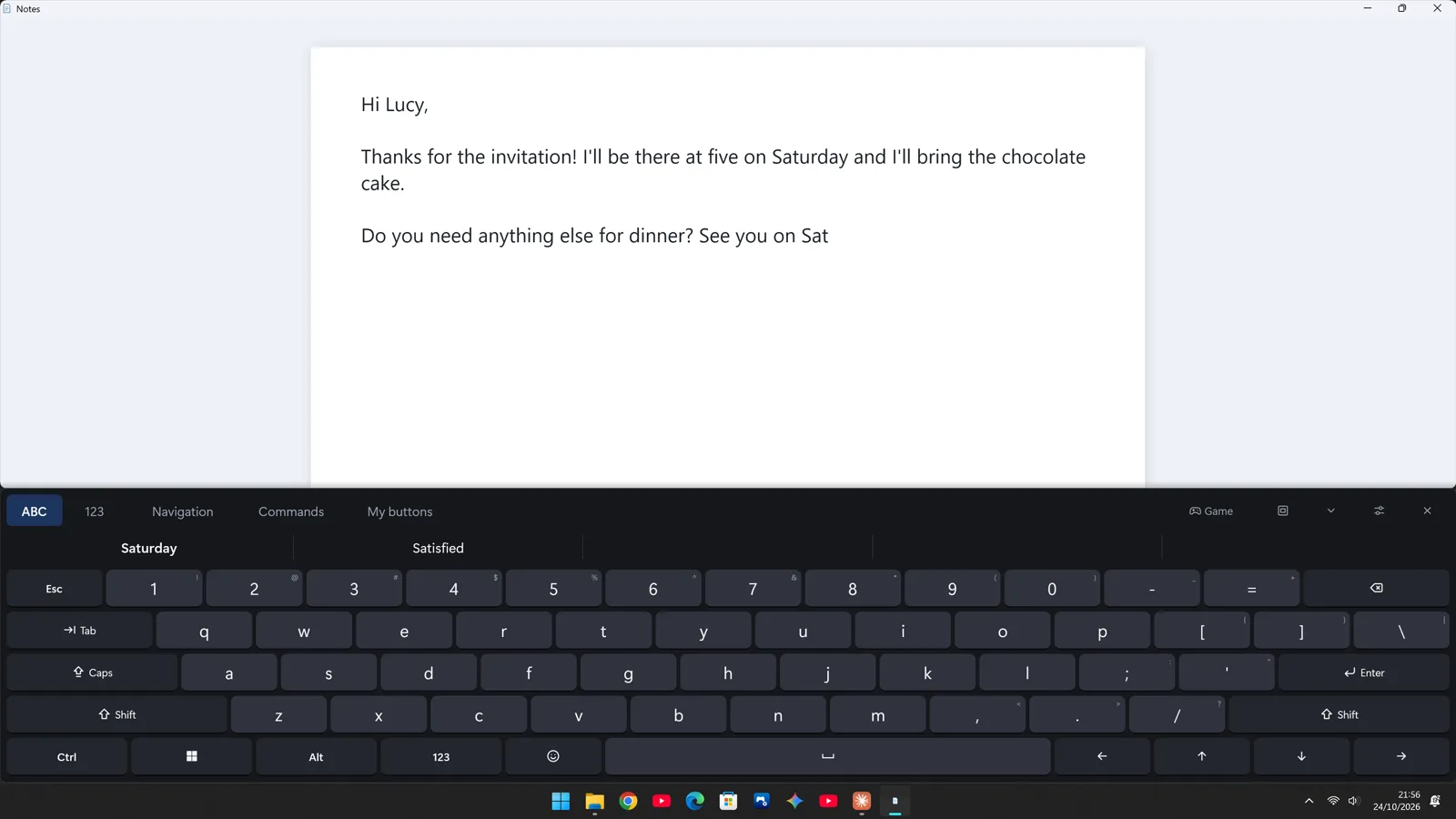
You type into the app you are using, just like a physical keyboard. Commands don't move it either.
Type into any app without losing your cursor, with word prediction, emoji and one-click commands.

Free 7-day trial.
Then a one-time purchase, no subscription.
To type “Thanks for everything” once you have used it before: Hoverkeys learns your words and suggests the next one. Every click you save matters when you type everything with a mouse.
For people who use their PC with a mouse, an adapted mouse, a trackball or a head pointer.
You type into the app you are using, just like a physical keyboard. Commands don't move it either.
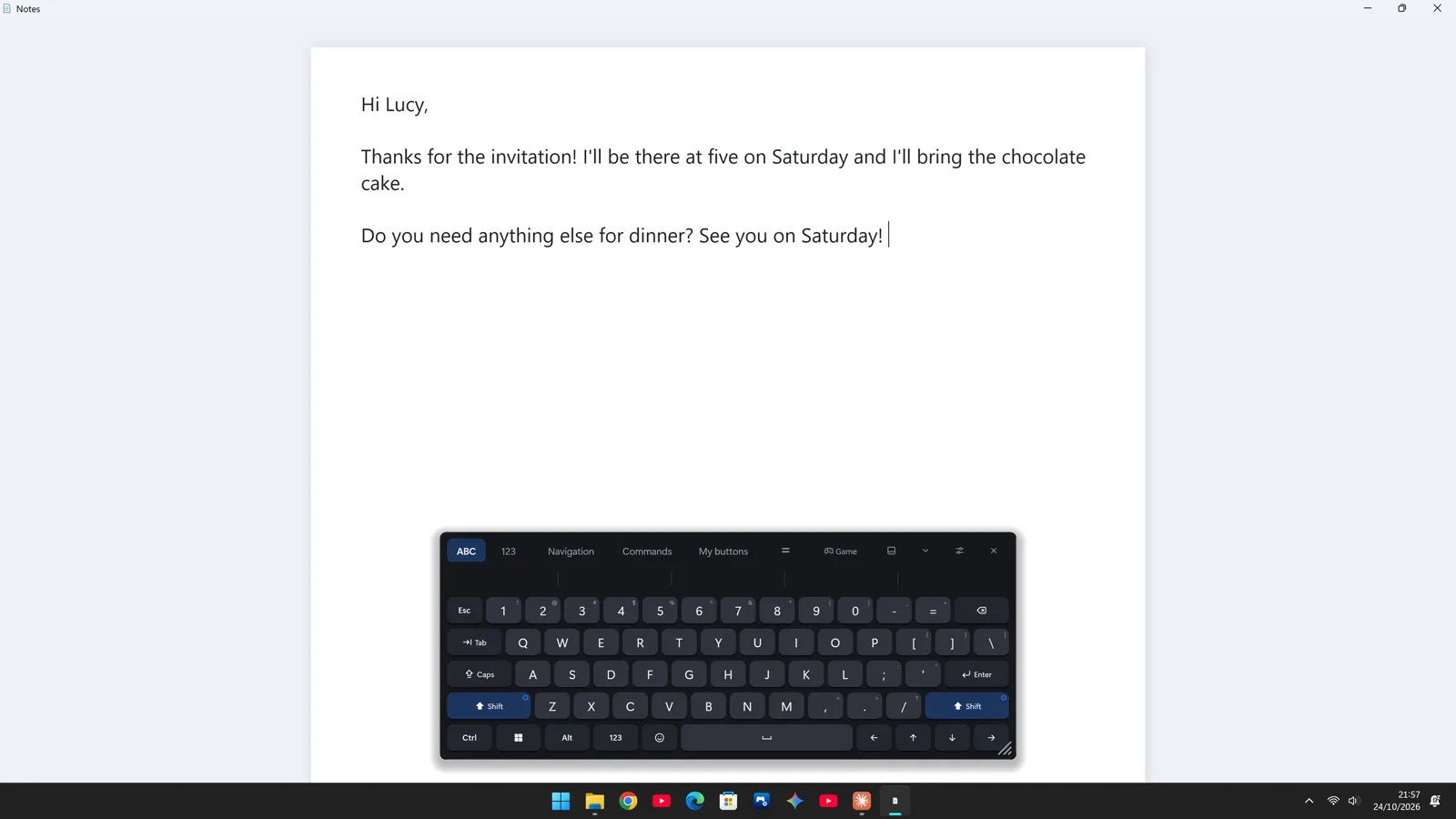
Docked at the bottom with its own reserved space, so maximized windows are never covered; or floating, or tucked away as a bubble.
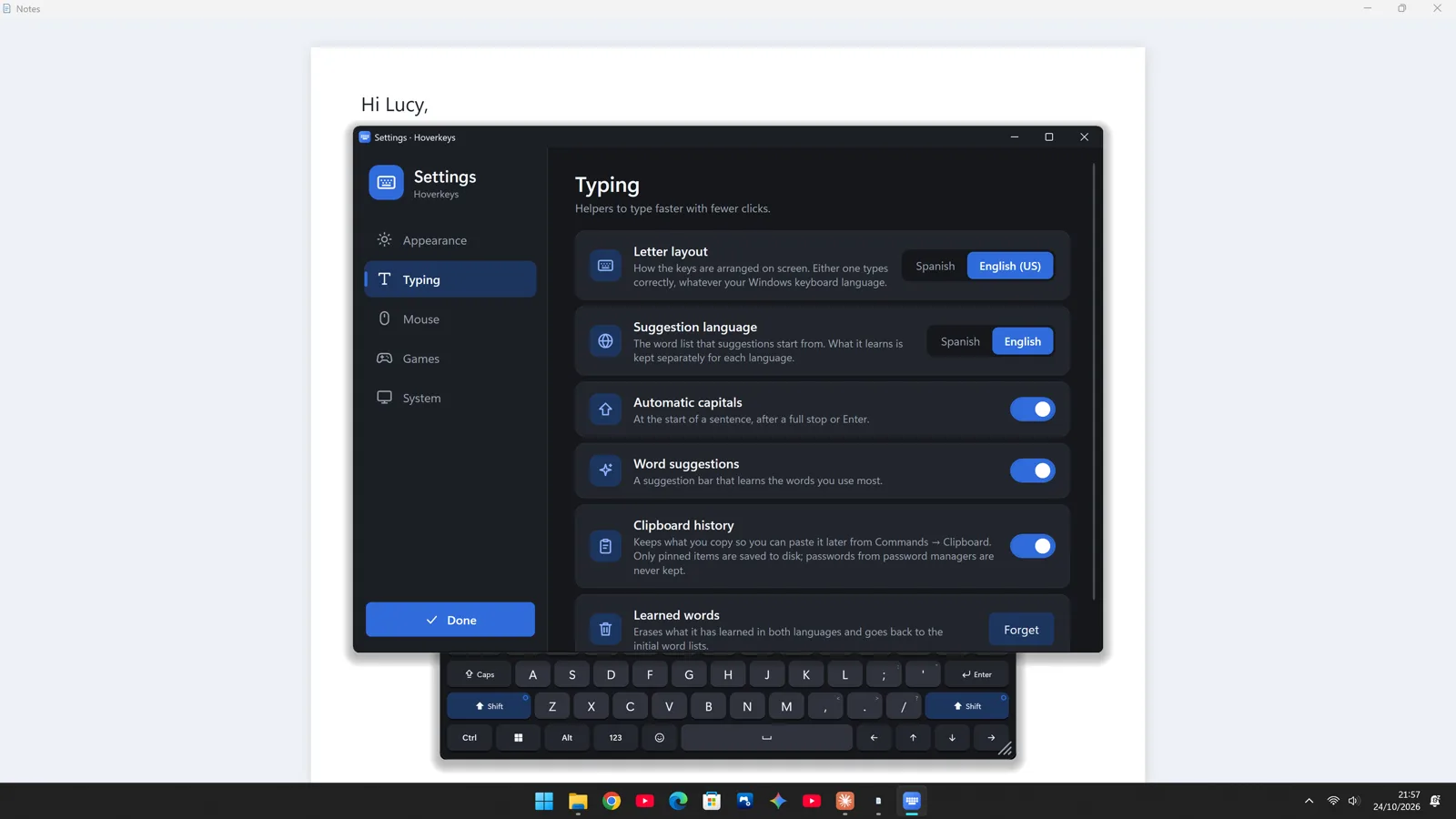
Suggestions in English or Spanish and the next word, with automatic capitals and smart punctuation. Type “dont” and it offers “don't”.
Copy, paste, undo, windows, browser tabs, volume… plus custom buttons for your texts, shortcuts or programs.
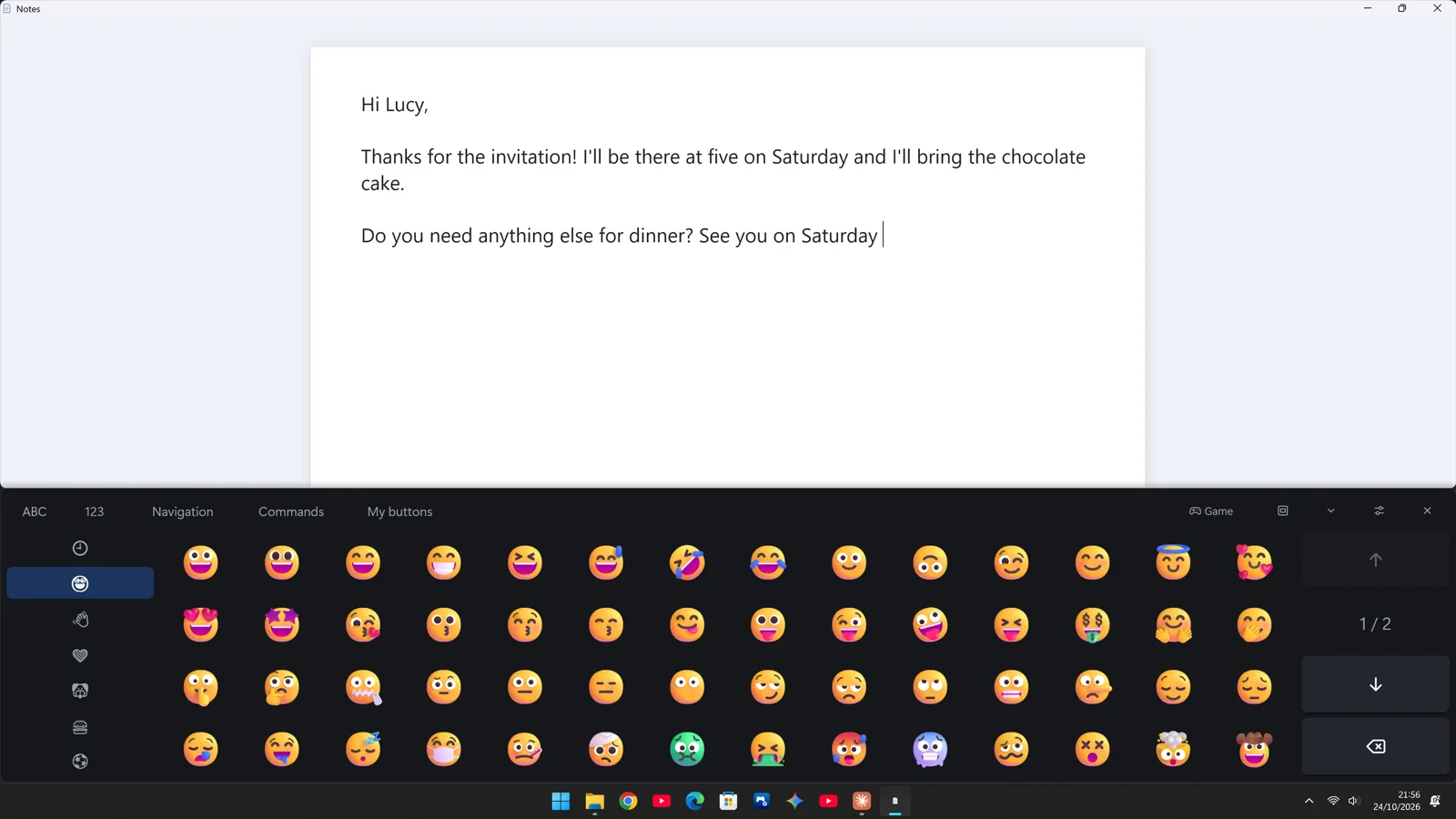
Windows 11's emoji with your recents, and a clipboard history where you pin what you want to keep.
Triple-click the mouse wheel to show it on top of your game. Game mode sends keys like a real keyboard and can hold a key down.
Dark or light theme, three sizes, and the interface in English or Spanish.
You can try it free for 7 days with every feature. After that it is a one-time purchase on the Microsoft Store, with no subscription. If you don't buy it, the keyboard keeps typing; only the extras are locked: suggestions, commands, custom buttons, emoji and clipboard.
Windows 10 (version 1809 or later) or Windows 11, and a mouse or any pointing device.
The wheel triple-click is just a shortcut. You can also show and hide Hoverkeys with its bubble or the system tray icon, and when docked it stays in view.
Yes: a triple-click of the mouse wheel shows it on top of your game, and game mode sends keys like a real keyboard (DirectInput and Raw Input). Games in “exclusive full screen” don't allow anything to be drawn on top; use “borderless window” mode in those.
The interface is in English and Spanish. The keyboard can be US English (QWERTY) or Spanish, and suggestions can be in English or Spanish.
None. No accounts, no ads and no analytics: your settings and the words it learns stay on your PC. See the privacy policy.
Yes, if you restart Hoverkeys as administrator from Settings › System. Windows doesn't let a regular program type into one with higher permissions.
Every feature from day one. If you like it, a one-time purchase keeps it yours.